Showing posts with label troubleshooting. Show all posts
Friday, September 26, 2008

Error code bX-jdokxi - what to do

0 comments
Have you ever got the error code bX-jdokxi when you try to change template? I did not too long ago while trying to change the template of Blogger FAQ from Blogger Buster's Red Web 2.0 template to my own 4 column Minima template. This is what I did to solve the problem:

1. temporally changed to a standard 2 column Blogger Minima template, then try to change to the 4 column Minima template. Error message - error code bX-jdokxi

2. I found out that there were a few gadgets (formerly Page Elements) that were not deleted (left behind) when changing to the standard 2 column Blogger Minima template. I removed all gadgets (Page Elements), then only change to the 4 column Minima template I actually wanted. EUREKA. Problem solved. No error message. Template successfully changed to the 4 column Minima template.

Important reminder. Before doing anything to the template, always backup template and backup gadgets (formerly called Page Elements). After successfully changing to a new template, you can use the backup gadgets (Page Elements) to copy-paste back into the new template via the LAYOUT.


Peter Chen's nice graphic signature
Continue reading →
Thursday, September 11, 2008

Missing tool icons, EDIT HTML, COMPOSE tabs - what to do

0 comments
Have you ever been faced with strange situations like missing tool icons to center text, left-justify or right justify text, make a link list, upload photo or video and just see a shorter tool bar like the one below:
short tool bar in compose editor
when previously you can because you had a longer tool bar like the one below:
long tool bar in Blogger post editor
Perhaps even the EDIT HTML and COMPOSE tabs EDIT HTML & COMPOSE tabs are both missing? Or even both tool icon and EDIT HTML/COMPOSE tabs are missing (just happened to me a short while ago when I was preparing a post in Flock social web browser (see screen shot below):

Blogger post editor problem

It need not be just Flock browser. It can be any other web browser.

What did I do then? All I need to do is to open another web browser like Firefox or any other web browser different from the one where you are having problems. I did exactly that and presto, the tool icon plus the EDIT HTML and COMPOSE tabs magically appeared!

The trick in using a different browser has worked for various different strange problems like getting error codes etc. that I have many browsers in my computer.

If you don't want to use a different browser, you can also try clearing cache and cookies and reopen the post editor window by clicking on the CREATE tab again.

Related post: Missing toolbar and unusable post editor (Singtel)
Continue reading →
Friday, July 11, 2008

Troubleshoot sidebar bottom page problems Part 3

0 comments
If you find the sidebar of your blog pushed to the bottom of the page, a very likely reason is that you have added something to one of your blog post which is too wide for the main column (a blog usually consists of the Header, Main Column, one or more Sidebars, Footer). To narrow down to the actual blog post that is causing the problem, either:
  1. Go to SETTINGS > FORMATTING and set the main column to display only 1 post in the main column. Then view the post 1 by 1 and see in which post you have the problem

  2. or
  3. go to the Dashboard for the problem blog where each post are listed one by one (click EDIT POST). Observe in which post the sidebar is at the bottom of the page


The post which have the sidebar at the bottom of the page is the culprit. Determine the width of the main column (click BACK button to get back to this page) and check what is in that post that has width more than the width of the main column. Edit the post so that the width of whatever is causing the problem so that its width is the same or narrower than the width of the main column.

To give you an idea of how to edit a video, refer to edit Youtube script to fit main column (click BACK button to get back to this page) or sidebar.

If it is not the blog post, then the problem could be something in the sidebar or the template, in which case refer to troubleshoot sidebar at bottom of page Part 1 (click BACK button to get back to this page) or troubleshoot sidebar at bottom of page problem Part 2(click BACK button to get back to this page)

Update 17 September 2010: A reader solved her "sidebar at the bottom" problem by reducing the number of posts in the homepage from 25 posts to 10. Each of those 15 posts was published individually (permalink) and was found to not have caused the sidebar to slide to the bottom. Thus the possibility of content in one or more of those 15 posts causing the sidebar at bottom of page problem was eliminated.

If you have many posts in your homepage and your sidebar is at the bottom of the page, you may want to try having less posts on your homepage.
Continue reading →
Monday, March 31, 2008

Blog display blank page or funny characters: What to do?

0 comments
We get questions like these every now and then. One said he signed into Dashboard, then click VIEW to view a blog, but only see a blank page. What I can suggest is to click VIEW > PAGE SOURCE (in Internet Explorer, it is VIEW > SOURCE) in the menu bar:

view page source in Firefox

and a new window will open. Very likely, you may see a blank template or a truncated (incomplete) template. The template should always begin with

<!DOCTYPE html PUBLIC "-//W3C//DTD XHTML 1.0 Strict//EN" "http://www.w3.org/TR/xhtml1/DTD/xhtml1-strict.dtd">
<html xmlns='http://www.w3.org/1999/xhtml' xmlns:b='http://www.google.com/2005/gml/b' xmlns:data='http://www.google.com/2005/gml/data' xmlns:expr='http://www.google.com/2005/gml/expr'>


or something similar. Note particularly the second line

<html .......

The very last line should always be

</html>

If the last line is not </html>, then part of your template is missing. If this is the case, you will have to change to a new Blogger template and your problem should be solved.

The other possibility is that your template may have become corrupted and thus your blog may display funny characters. In this case, First backup your template PLUS Page Elements. This post backup your Page Elements should explain the process in greater details.

Then change to a new template which may be the same template you used originally before you started any blog customization or it may be a brand new Blogger template. Once you have a fresh template installed, start putting back in whatever Page Elements you had been able to back up. Those which cannot be backed up like ARCHIVES or PROFILE, most likely you can get it again by clicking ADD A PAGE ELEMENT in the LAYOUT and selecting from a list. The one which you most likely have to start from scratch will be LINK LIST. That is why I prefer to use HTML/Javascript Page Element and HTML for hyperlinks for my Link List. This, using an UNORDERED LIST (<ol>) is described at the bottom of the post linked to above.

Peter Chen's nice graphic signature
Continue reading →
Thursday, November 1, 2007

Trouble shoot sidebar slide to bottom of page problem: An example

0 comments
I have previously published two posts on the "sidebar slide to bottom of page" problem at Sidebar pushed to bottom of page: What to do? and Trouble shooting sidebar sliding to bottom of page problem (click BACK button to get back to this page). Problems like this are most frequent in Internet Explorer, but while they may not cause the sidebar to slide to the bottom of the page with other browsers like FireFox, they can cause other problems.

A blog reader recently asked for assistance for this problem and I thought it would be good to use his problem on how to go about solving the problem. His sidebar is at the moment at the bottom of the page and here is a screenshot of the cause of the problem:

cause of sidebar sliding to bottom of page

I have used the red error to show where his sidebar end, and the screenshot clearly shows the width of the "Favorite Songs" far exceeding the sidebar width. If I have access to his Blogger account, I will open the Page Element (widget) that had been added to display that "Favorite Songs" and also open the template editor to check what is the exact width of the sidebar. See How to find the width of the blog Header, main column (posts) and sidebar (click BACK button to get back to this page).


However, I have no access to his Blogger account, so I have to do the next best thing, that is, click VIEW > PAGE SOURCE in the menu bar at the top of the browser while at his blog. This is what the page source revealed:

#sidebar-wrapper {
display: inline; /* fixes a strange ie margin bug */
float: right;
margin: 0 3px 0 0;
width: 269px
color: #1c4676;
background: url(http://www.blogblog.com/thisaway_blue/bg_sidebar.gif) repeat-x left top;
}

The part in red tells me that the width of his sidebar is 268 pixels. Further down the page source is this script which is used to display the "Favorite Songs"

<h2 class="sidebar-title">FAVOURITE SONGS</h2>

<div style="text-align: center; margin-left: auto; visibility:visible; margin-right: auto; width:450px;"><embed style="width:435px; visibility:visible; height:270px;" allowScriptAccess="never" src="http://www.profileplaylist.net/mc/mp3player-othersite.swf?config=http://www.profileplaylist.net/mc/config/config_blue.xml&mywidth=435&myheight=270&playlist_url=http://www.profileplaylist.net/loadplaylist.php?playlist=18021445" menu="false" quality="high" width="435" height="270" name="mp3player" wmode="transparent" type="application/x-shockwave-flash" pluginspage="http://www.macromedia.com/go/getflashplayer" border="0"/><BR><a href=http://www.profileplaylist.net><img src=http://www.profileplaylist.net/mc/images/create_blue.jpg border=0></a><a href=http://www.profileplaylist.net/standalone/18021445 target=_blank><img src=http://www.profileplaylist.net/mc/images/launch_blue.jpg border=0></a><a href=http://www.profileplaylist.net/download/18021445><img src=http://www.profileplaylist.net/mc/images/get_blue.jpg border=0></a> </div>


There are 4 widths there highlighted in red (you will scroll horizontally to see the hidden one) and the problem here is I don't know which width to change. I would probably first leave the first one alone, and change the width of the other 3 so that it is equal or less than 268. If that still don't work, I will change the first width as well.

So now, all I can do is to refer that blogger to this post and hope he can solve his problem. As for you, I hope you have learned something about how go about solving similar problems.

Update 17 September 2010: A reader solved her "sidebar at the bottom" problem by reducing the number of posts in the homepage from 25 posts to 10. Each of those 15 posts was published individually (permalink) and was found to not have caused the sidebar to slide to the bottom. Thus the possibility of content in one or more of those 15 posts causing the sidebar at bottom of page problem was eliminated.

If you have many posts in your homepage and your sidebar is at the bottom of the page, you may want to try having less posts on your homepage.
Continue reading →
Sunday, April 30, 2006

What to do: Sidebar slide to the bottom of the page

0 comments
A very common complaint of bloggers is the sidebar, and sometimes the content (main column) of the blog sliding to the bottom of the page. Sometimes this happen in all the browsers, sometime in one browsers and not the others. This happen most frequently in Internet Explorer. I have previously published post about the same problem at Sidebar pushed to the bottom of the page. Here I try to explain further what to do about it.

Images and hyperlinks

The most common cause of this problem is having photos or hyperlinks that are too wide/long for the width for the main column or the sidebar. Try saving the post containing the photo or hyperlink suspected of causing it in draft form, and see if that helps (see update below colored in red for a better way). If it does, removing the post or reducing the size of the photo will help. If you are not familiar with manipulation of images, read this post: Uploading and manipulating images with Blogger and Blogger Beta (click "BACK" button to get back to this page).

Update: I found that a better way is to look at the individual post page by clicking on the timestamp (permalink) at the bottom of the post, or by clicking on the title of the post in the Previous Posts section of the sidebar. If the sidebar is where it should be - at the top of the page, then that post is innocent and you should leave it alone. If the sidebar is at the bottom of the page, then it is that post that is causing the problem and you need to do something about it. With this method, you need not go to trouble of saving it in draft, and then publishing it again)

If it is a long hyperlink, reduce the anchor text to a short text. Some people are fond of writing the HTML for the link like this: <a href="URL">URL</a>. If the URL happens to be a long URL, then you will end up with a very long unbreakable link which will cause your sidebar to slide down to the bottom of the page. Write your HTML for the link this way:
<a href="URL">description</a>

Tracking down the problem

You may also try doing some detective work. Think back to what you did just before it happened. Undo it and see if that helps. You may want to try to track down what is causing the problem. You may try looking at each individual post page and see if the problem occurs. (see update in red above). Try to check to see if the problem is with the template (see below)

Template

Sometimes the problem is caused by incorrect codes or missing or mismatched tags in the template. Rat reported that once it was caused by a closing comment tag --> without an opening comment tag <!--. HTML tags occurs in pairs - opening tags and closing tags.

If you want to see if the fault is in the template, first BACKUP your template. If you don't know how to backup the template, read post How to backup your template (close new window to get back to this page). Then load a fresh template to see if that helps. If the sidebar is at the bottom, then it has something to do with the template. Use a new template, and if you have a lot of customization, lessen your workload by copy-pasting the customizaton from your backup template. If don't want to start all over again, put back the backup template and try to locate the problem, If you can't, then post your problem to the Blogger Help group (close new window to get back to this page) and see if anyone can help.

Others

Another way to solve the problem is to change the width of the content and the sidebar. When you do this, you have to keep in view how it will affect the way the blog is displayed in different screen resolutions. Read about how to change the width of the content and the sidebar in this post: How to change the width of the main column and the sidebar (click "BACK" button to get back to this page). If you are using a large screen, and you want to check how those with 800x600 screeb resolution see your blog with the changes, type or copy-paste this into the address bar - javascript:top.resizeTo(800,600) and press the enter key.

Sometimes it is caused by you, and sometime, as I discovered earlier, it can be caused by people commenting in your post, putting long unbroken text or codes. That had happened to me twice. It was most embarassing for me as I have this post which is about how to solve sidebar at the bottom of the page problems, and I wasn't aware of the problem for a long time. Most of the time, I use FireFox with Google toolbar (close new window to get back to this page), and that problem only was seen in Internet Explorer. I was thus unaware of it for a very long time.

I very often have to include example of HTML codes which contain long unbroken text/code, and in order to do that, I have to put them into a scroll box. If you want to know how to include a scroll box, have a look at post How to make a scroll box (click BACK button to get back to this page). This can be another source of problem because I have to decide on the width of the scroll box to fit into main column. In one of the blog, I used a modified Thur's 3 column Minima template (click BACK button to get back to this page). I use a large screen. In that problem post, I had chosen a width for the scroll box which easily fit into the main column in that screen resolution, but recently, I discovered that for those using 800x600 screen resolution (about 10-20% of my readers) the page was screwed up. See screenshot (click to enlarge)
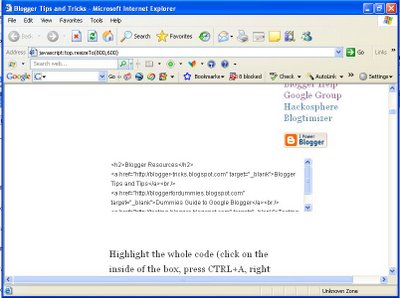
scroll box causing problem for small screen viewers
That was for this blog. I think I will change back to the standard Blogger template.

Note: For an actual example of how I try to show a blogger solve this sidebar slide to bottom of the page problem, refer to Trouble shoot sidebar slide to bottom of the page problem: Actual example (click BACK button to get back to this page)

NEWER POST    OLDER POST
Continue reading →
Related Posts Plugin for WordPress, Blogger...