Showing posts with label Alert. Show all posts
Thursday, April 26, 2007

Alert: Pop-up, don't give your username and password

0 comments
Today, something is going on with Blogger. Even when I am already signed in, whenever I attempt to get to the Dashboard, a pop-up appears which asked for the username and password, and foolishly, I gave my username and password. However, I think that that is a foolish and unneccesary thing to do because if you click the [x] (cancel), you will still get to the Dashboard. I am wondering if this is an attempt by some hackers to get our Blogger username and password for spamming, hijacking and other purposes.

If you get that pop-up, my advice is to click [x] (cancel) and not give your username and password. Because I gave it the first time, I have quickly changed my Blogger (Google) password, and now I believe I can sleep better.

Update 3 May 2007: Blogger Employee at the Google Blogger Help group have informed us the pop-up was from Blogger, but it had been fixed. He also assured that their username and password had not been compromised. However, I am still of the opinion that I did right in changing my password immediately as it is always better to err on the side of caution, especially when you don't have all the facts in front of you.
Continue reading →
Monday, April 16, 2007

Alert: Problem with using Google group for hosting images for posts, etc.

0 comments
I prepared a post Uploading and manipulating images Part 2 (click "BACK" button to get back to this page) and used a Google group Photostore to host the photo. When I first previewed and published the post, the image appeared OK. Then for some reasons, I checked the post and found the photos to be replaced by blank boxes. I then proceed to upload the photo to My Photo Store - More cats in town, a blog created specially to host photos, obtained the URL of the photo as outlined in this post Getting New Blogger (formerly Blogger Beta) to host photos for the profile, sidebar, header, etc. (click "BACK" button to get back to this page). Now the photo appeared OK in the post. Now I would be much more careful about using Google group to host photos for my blog.
Continue reading →
Thursday, February 15, 2007

How to avoid your blog from being marked as a spamblog

0 comments
Recently, I received an email from Blogger saying my blog Generating revenue from your blog has been marked and locked as a spamblog. I can not longer edit or post on that blog. I had to go through a word verification process to get that blog reviewed by a human, and I don't know how long that will take.

What triggered this unwanted action? Well, prior to that, I had tried to prepare a post to answer a question from a member of the Google AdSense Help group. As I don't want him to wait too long, I have been repeatedly publishing the post as I went along, with a notice at the bottom "To be continued". I believe this is what triggered the spambot to mark the blog as a spamblog.

Conclusion: To avoid being marked as a spamblog, do not repeatedly publish in a short period of time.

UPDATE 17 February 2007: Got an email from Blogger saying my blog has been reviewed, verified, and cleared for regular use so that it will no longer appear as potential spam. It took only a day, so I think Blogger Support does not really deserve the bashing they often gets in the Google Blogger Help group.

UPDATE 2 March 2007: Another of my blog Generating Revenue From Your Site got blocked as a spamblog. I did nothing, like for example what is mentioned in this post, to trigger it, nor do I see anything in the blog that might seem even remotely that can get it classified as a spamblog. Another of my reader also reported that his blog was blocked. And there were many reports of such happenings in the Google Blogger Help group. Something musst be seriously wrong with the algorithm used by Google spambot.

UPDATE 3 March 2007: Received email message saying my blog is cleared and I can now post to the blog. See. Blogger Support does not deserve the bashing they often received in the Google Blogger Help group.
Continue reading →
Friday, December 1, 2006

Alert: It may be a good idea to republish the whole blog once in a while

0 comments
Recently, someone asked a question in the comments section, and I answered giving a link to one of my older post. She alerted me to the fact that the link lead to a blank page. I checked and confirmed her finding. Not only that, I went into the Dashboard, click EDIT POSTS and then click VIEW against that post. That too lead to a blank page. I copied the URL, pasted it into the address bar. That too lead to the same result. Just to make sure it wasn't something in the post itself, I copied the content of the post editor in the HTML mode and pasted it wholesale into a duplicate post. That post was viewable, showing that it wasn't anything to do with the content of the post.

I posted the problem on the Google Blogger Help group, stating the problem and asking members to verify if it was so and if they may know of the reason/solution for such a problem. Wasted responded, advising to republish. I republished the whole blog, and sure enough, that problem link then lead to a viewable page, not a blank page.

So folks, it may be a good idea to occasionally republish the whole blog to avoid such incidences.

  NEWER POST    HOME  OLDER POST
Continue reading →
Thursday, November 23, 2006

How to delete comments Part II

0 comments
Recently I found that my sidebar of some of my posts were down at the bottom of the page, and it wasn't my fault. It was caused by commentors who left long unbroken text/unclickable links in the comment. I tried to delete the normal way, that is, log into Blogger, surf over to the post containing the comment, look for the trashcan icon, click on it, and confirm deletion. Well, it didn't work for me, probably because I had tampered with the permalink (timestamp). So I had to contact Blogger support. That is another story that you can read here How to contact Blogger support. I finally did get a reply from them with instruction on how to delete the comment.

I found the month in which the problem post was, click on that month in the archives, scroll to the post, click on the comments, and there I finally saw the trashcan, click on it, and deleted the offending comment.

So folks, sidebar sliding to the bottom of the page may not be only your fault. You should check the comments made by your visitors to make sure they don't contain any long unbroken text/unclickable links.

  NEWER POST    HOME  OLDER POST
Continue reading →
Saturday, November 11, 2006

Precaution to take before linking to a Website

0 comments
Occasionally, you may get a request for a link exchange, or you may just want to link to a site as part of your post, or you just like the site. Before you link to any site, it is good to check the PageRank of the site. In the first place, it will be advantageous to you if you exchange with a site that has a higher PageRank than yours. However, any link relevant to your site content, whatever the PageRank (as long as that site is not blacklisted) helps in the ranking. More important is to find out if the site has been blacklisted by Google. A site may be blacklisted for doing black-hat SEO (Search Engine Optimization) such as making certain keywords invisible by making the color of the font the same as the background, etc. It does not matter if a blacklisted site link to yours as Google knows you have no control over who link to you. However, you do have control over who you link to, and if you are unfortunate enough to link to a blacklisted site, your site will also be blacklisted.

The question now is, how can you find the PageRank of a site, or more important, how would you determine if a site have been blacklisted. You can do this easily by installing FireFox with Google toolbar (close new window to get back to this page). After installing FireFox with Google toolbar, you should surf over to the site using that browser and look for the the PageRank icon, FireFox with Google toolbar PageRank icon let your mouse hover over the box in the icon and the PageRank of that site will be displayed with value from 0 to 10. If the box is grayed out, and no value (not even zero) is shown, that means that site had been blacklisted by Google and you should not link to that site. Otherwise, your site will be blacklisted as well.

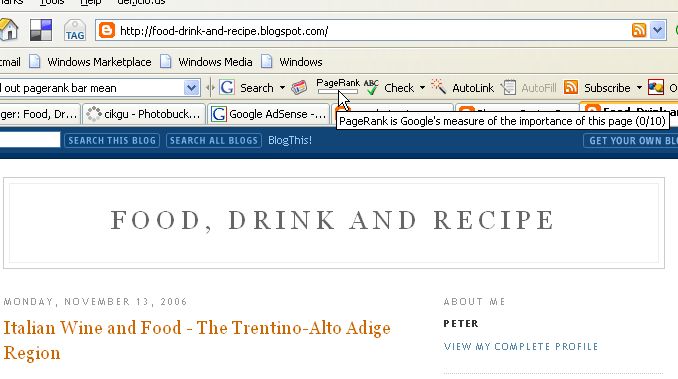
Update 14 November 2006: Someone left a comment which contain a long unbroken and unclickable link which will cause my blog's sidebar to slide to the bottom of the page. This is the third time I may be forced to delete the comment (I have tried viewing this post in IE before deleting it, but suprisingly the sidebar is not affected so I have not deleted the comment yet. Took me some time because I was getting the error 500 message, but now it is viewable. Anyone viewing the post/blog with IE, I hope you will comment and let us know what you see w.r.t the sidebar). However, I reproduce part of the comment here: ""A completely gray PageRank toolbar meant that Google did not have that page listed in their index – either because the page was too new to have been indexed, or the page had been banned by Google.' therefore how can you say a grey out box means the site has been blacklisted." There seem to be some controversy over the interpretation of the Google toolbar PageRank icon, and hoping to clear this matter up, I have contacted Google for an authorative interpretation. I hope I get a response, and if I do, I will post it here. I am a scientist, and scientists like to experiment. So I have created a completely new blog with just one article and which should definately not have been indexed yet, and checked the PageRank with the Google toolbar icon. The PageRank toolbar was not grayed out but white, and the value shows zero. See the screenshot below (click on the screenshot to enlarge):
Google toolbar PageRank icon


  NEWER POST    HOME  OLDER POST
Continue reading →
Tuesday, November 7, 2006

Advice to Blogger bloggers regarding comments, comment moderation, and sidebar problems

0 comments
There are a couple of things I would like to highlight regarding comments in Blogger blogs. Among other things, it may cause the sidebar of your post to slide to the bottom of the page in Internet Explorer through no fault of yours:

Long unbroken lines in comments and the sidebar

Today, I received a comment moderation notification email and approved it, but only after I posted it, I realised that the commentor has included a long link (non-clickable) which will cause the sidebar to slide to the bottom of the post. I checked in Internet Explorer (most of the time, I use FireFox with the Google toolbar (close new window to return to this page) and confirmed it. I quickly commented on the comment author's blog (there was no email) and explained the reason why I am forced to delete the comment (it was a comment which disagree with my post) and that I hope she will comment again, making the link a clickable link (close new window to get back to this page) and I will approve it. If keeping the sidebar in the proper position is important to you, I will advice that you examine the comments carefully for such things linke long, unbroken line of texts, especially long unclickble links, long line of unbroken code, etc. This has happened to me more than once (see section below).

Moderating comments

For most of my blogs, I have enabled comment moderation to keep out spam comments, etc. However, one day, a member of the Google Blogger Help group asked if he can edit the comments. Now in the comment moderation notification email, there are 3 options - Publish, Reject, Moderate. I have practically all the time clicked Published, and on rare occasions, clicked Reject, but I have never clicked on Moderate. I thouht that clicking on Moderate will allow one to edit the comment, but no. I wanted to check before I answered that question, and looked for a comment to moderate. It so happen that the only comment moderation email notification I had was for a Blogger beta blog. I clicked on Moderate, expecting to be taken to a page containing that comment. Instead of that, I was taken to a page with a list of comments waiting for me to moderate, with the comment I received for moderation right at the top. The comments below I have never received any notification. I took some time to moderate all the comments there. I initially thought that this was only a Blogger Beta bug.

Just in case it is not only a Blogger beta bug, I decided to check on one of my Blogger classic blog (this one) in the Dashboard for this blog by clicking on the "Moderate comments" tab. To my horror, I found a list of 51 comments waiting to be moderated, some dating back to June, and for which I also never received any email notification. And more important, I found that there is no way I can find in which post that comment was made, which makes responding to the comment very, very difficult. So if your comment was not published in good time and/or not responded to, blame Blogger, not me. I have notified Blogger support, and hope they have taken note of the problem and is doing something about it, especially making the information as to which post the comment was made in available when one moderate comments via the Dashboard. In the meantime, if you are moderating comments via email notification, do take the trouble to check "Moderate comments" in the Dashboard once in a while. That reminds me. I must check that in my blog Dummies Guide to Google Blogger (close new window to get back to this page).

BTW, there was one comment with a long lines of unbroken codes in one of my post which canused the sidebar to slide to the bottom of the page, and which I didn't discover for a long time. That was very embarassing because I have a post in my blog which explain what to do when sidebar is pushed to the bottom of the page.

UPDATE 14 November 2006: I logged into Dashboard and clicked this blog in the list of blogs in the Dashboard. Clicked on "Moderate comments" and again found 10+ comments waiting for moderation for which I never receive a email notification. I approved all except 2, one being a duplicate, and another one a spam. I have no idea which posts the comments were made, so am unable to respond. I have already informed Blogger, but looks like they are either too busy, do not want to, or cannot do something about it. I will inform them again and see if matters improve.

  NEWER POST    HOME  OLDER POST
Continue reading →
Tuesday, October 31, 2006

What to do when your blog content is copied

0 comments
This post is a result of an alert and some links given by Sherry of Helpful Resources for New Bloggers (close new window to get back to this page) that someone is copying contents of my blog Dummies Guide to Google Blogger. Rather than describing what to do, I will give an account of what I did.

At this thread How to use Google AdSense with blog (close new window to return to this page), I followed the link in his signature line, and found a couple of posts which are exact duplicate of mine. I went to the individual post pages (permalink) make screen shots (Printscreen) with Irfanview. See screenshots below (click "BACK button to return to this page).
The part above the fold of his post which he copied from mine

copied contentMy post from which he copied from (click screenshot to enlarge. Click "BACK" button to return to this page):my original which was copiedNote the differences in URLs and dates (27 October 2006 and 4 April 2006). To get the rest of the posts, I scrolled down and took a few more screenshots to show the similarity and saved them in a special folder. Further, I got the source code of his blog (in the menu bar, click VIEW and select PAGE SOURCE.This is for FireFox. Wording will be different in different browsers). I looked for the AdSense scripts and copied his AdSense ID (pub-7471417268818747). This is to collect evidences. I let him know that I know his ID. I requested him to delete the posts and let him know of the consequences if he didn't. All this was done politely (no point making enemies online). Eventually, he did remove the posts and apologised, and that was done quite promptly.

Lorelle did a very good article detailing what to do when your content is copied. See her article What Do You Do When Someone Steals Your Content (close new window to get back to this page). You should read what he has to say.

If you want to deter potential copy-cats, you can put a warning banner from Copyscape. For an example, look at this blog: Star Home Improvements (close new window to return to this page). The banner is right at the top, just below the header of the blog. To get the script for the warning banner, you can go to Copyscape (close new window to return to this page). You can get different formats of the warning banner to suit the part of your site you want to place it in. For example, this bigger square format: copycat deterrent banner. If you are using Blogger classic template, this post will guide you where to paste the script: Blogger template tutorial (click "BACK" button to return to this page). If you are using Blogger Beta template, to place it below the header (which I think is the best place to put it), see post Adding graphic to your Blogger beta header (close new window to return to this page). There are even bigger formats than the one I have shown, and if you feel that the banner shown are not prominent enough, you can choose the bigger formats for your blog to really frighten off the copy-cats.

Note: I have tried Copyscape, and found that it was not very effective. However, they have a Premium version and also automatic monitoring with Copysentry (which I presume are not free). You may get better result with those. If you are serious about protecting your content and don't mind spending some money, I suppose you can try it out. In any case, I think their banner is a good enough deterrent to warn potential copy-cats, and that is free.

You may also inform Google about the infringement at Digital Millennium Copyright Act - Blogger

Books from Amazon

Copyright: Examples And Explanations (Examples & Explanations)

Patents, Copyrights & Trademarks for Dummies

The Copyright Handbook: How to Protect & Use Written Works (Copyright Handbook)


  NEWER POST    HOME  OLDER POST
Continue reading →
Wednesday, October 25, 2006

Bug in moderating comments via email in Blogger Classic and Blogger Beta

0 comments
Today, I made a very disappointing discovery when I tried to answer a query from a member of Google Blogger Help group. I always moderate comments via email, and have been receiving notifications regularly. When I moderate comments via email, I have the advantage of having a link to the post in which the comment was made, so I can easily respond to the comment if needed. There are 3 choices in the email notifications - Publish, Reject, Moderate. I have practically click on the Publish link all the time, and only occasionally click on Reject. I have never tried clicking on Moderate.

The question was, is it possible to edit comments? I though it might be possible by clicking on Moderate, and I said I will test it. I checked for comments to moderate, and it so happened that the only email notification for comment moderation was for my beta blog. I clicked on Moderate, and to my surprise, I was taken to a page with a long list of comments waiting to be moderated, with the one in the email right at the top of the list. I never receive any email notification for those comments below the first one in the list. This means not all comments will cause an email to be sent to me for moderation.


Update 2 Febuary 2008: I have been feeding Blogger with details of this problems for a long time and the problem still persists.


In that list of comments waiting for moderation, there was no choice for editing, only publish or reject. And not only that, there was no way of telling in which post the comment was made, and this make it hard for me to respond to the comment. I made a post about this problem in Reporting difficulties in moderating comments in Blogger Beta (close new window to return to this page). I decided to check on my classic blogs, starting with this one. In case any of you don't know how to moderate comments from the Dashboard, I am putting a screenshot below:
moderating Blogger comments in the DashboardIn the POSTING tab, you will see a sub-tab "Moderate comments". I clicked on "Moderate comments" and found a list of 51 comments waiting to be moderated dating back to July if I remember correctly. I never realise this as I had been receiving email notifications regularly, and never knew that for some comments, no email notification were sent. It was a lot of work checking the comment one by one and publishing them. Worst, I wouldn't have time to check through all my post to respond to them. So if your comment was late in getting approved, and didn't get a response, please forgive me. Blame Blogger.

I have notified Blogger support about the problem, and have also made a suggestion that they make it possible to navigate to the post where the comment was made when you moderate comments from the Dashboard. I hope the bug get fixed quickly, and that my suggestion will be acted upon. In the meantime, my advice for those moderating comments via email, do log into the Dashboard and try moderating comments from there. You may find some comments waiting for you to moderate without you knowing about it.

Update March 16 2007. Ron (Rat) and Sandra pointed out something I missed in moderating from the Dashboard. Above the list of comment/s to be moderated is this:

Unreviewed Comments (Sort: Post Name, Comment Date)

You can actually get the title of the post where the comment was made by clicking Post Name. However, this disappear after you have approved the post, and you have to have sharp memory or you have to write it down somewhere if you don't want to lose the ability get to the post to respond to it. In any case, I much prefer modearating from email as there will be a direct link to the post to enable one to respond to the comment.


<
  NEWER POST    HOME  OLDER POST
Continue reading →
Sunday, October 22, 2006

Blog hijack, how to protect yourself.

0 comments
Recently, I have been reading many reports of blogs being hijacked on the Google Blogger Help forum. Nitcrutz (Chuck) wrote a good post on it: Is your blog gtting hijacked through your computer
Stolen Computers
(close new window to get back to this page).

Among many recommendations is to strengthen your password. I have since done that. Fortunately I have a way of creating long password with numbers mixed. I would like to disclose the method I use, but that would be exposing myself, so you will have to find your own way. The only thing I feel safe talking about is it consist of 3 parts which are easy for me to remember. Also, I am mullti-lingual. Hope these hints helps you. The only drawback is the hassel of remembering long password (which in my case is not difficult) and to have to type in long password. I have changed the gmail account password as well as the Google account password (I thought they share the same password, but they don't) for my beta blog. If you want further information about creating strong passwords, have a look at this article: Strong passwords: How to create and use them (close new window to return to this page). Another site on creating hard to guess password: Choosing good password (close new window to get back to this page).

Amazon computer products

Another safe surfing tactic you may want to use is to install 2 or more user accounts for Windows, one with administrative rights which you use only when you need to install software, and the other non-administrative for general surfing. For me, unfortunately, I have a habit of having 3 browsers opened simultaneosly, and I have not figured out the way to install Opera such that it is also accessable for non-administrator users, so I am sort of forced to use the administrator account most of the time. When I find out how to install Opera for all users, I will begin to follow my own advice.

To Change your Blogger or Google password

Sign into blogger.com (Dashboard). On the top left, under EDIT PROFILE, click "Accounts". In the next page, there will be a long list of Google services, which all uses the Google account. Click "change password". Type in your current password. Below, there will be 2 boxes to type in the new password. They must match.

Note: This will change the password to all Google account related services such as Gmail, Google analytics, etc., but not your Google AdSense account.

To protect your hardwork and prevent headaches, do read Chuck's articles: The real Blogger Status (close new window to get back to this page).

Update 29 November 2006: Looks like having Norton Securities and strenthening my password from 10 characters to 15 didn't help. My Blogger account was hijacked and all (except one of which I am only a team member wasn't listed in my Dashboard, and all the blogs were redirected, for me to google.com.my, for others to other sites. Do read Chuck's articles if you want to protect yourself. Meanwhile, Chuck is trying to figure out how the hijack happened. Blogger employee helped to restore access to 2 of my blogs. It must have something to do with the template as changing the template removed the redirects. How the bad guys got into Blogger's templates we still can't figure out.

NEWER POST    OLDER POST
Continue reading →
Sunday, August 6, 2006

Why you should be using more than 1 web browser

0 comments
Have you ever experienced the following:
1. You try to open a web page, and it takes forever to load
2. You try to log in to Blogger, Gmail, etc and is unable to do so
3. You try to publish a post or upload a photo, but is unable to do so
4. You uploaded a photo, and it said done, but you check and it is not there
5. You have more than 1 email account, Blogger account, del.icio.us account or any any other services. You are logged into one, then you want to log into the other, and you have to first log out and re-login. You find that inconvenient, and you want to be logged into more than one account of the same service at the same time
6. You are in the Layout page and you can't see "Add a Page Element", etc. (see update at the bottom of the page)
(There are more, will add it as it comes back to my memory)

Well, I have found many times that by simply changing web browser, or having more than one browser opened at the same time, I succeed where I failed before. Recently for example, I tried uploading a picture to a Blogger post and it said done, but when I checked the post, the picture was not there. This happened a few times. I changed to FireFox, logged in, upload the picture and succeeded the first time. (Happened again while I was preparing this post). See post What to do when you can't post, upload photos, etc,.

And if you have more than one browser opened at the same time, you can be logged into one Gmail account, for example, and with the other browser, you can be logged into a different Gmail account. I have Gmail account for private use and Gmail account to put on my blog for visitors to contact me, etc.

There are still many who are still using only Internet Explorer, and if this is the case there are even more reasons you should get FireFox. Blogger is optimised for FireFox. And the tabbed browsing is just fantastic. Once you have tried it, you will never want to go back to Internet Explorer again. Then there is a very effective built-in pop-up blocker built-in. Even if you already have FireFox installed, you should get the Google Toolbar. With this, you can conveniently do spell checking within the Blogger post editor as well as other online forms. This is more convenient than using the spell checker built into the Blogger post editor. (See "How to do spellcheck for your Blogger post") With the tool bar, you can check the PageRank of your blog as well as any other websites you visit. With the Google search box built into the toolbar, you can search just the current web page or the whole web. There are many other advantages of having a Google toolbar with your FireFox.

I have 3 browsers on my computer, Internet Explorer, FireFox and Opera and I find that very convenient. But Opera is still not fully support by Blogger yet, although I still use it. I find FireFox much better, especially for those using Blogger. For example, compare the toolbar of the post editor in FireFox and Opera. Here is a screenshot of the toolbar in FireFox (click on the screenshot to enlarge it)and here is a screenshot of the toolbar in Opera (click on the screenshot to enlarge it)Note that there are much less features in the toolbar, and especially notice that the EDIT HTML tab and the COMPOSE tab are missing in Opera. That means, in opera, you post editor will only be in the EDIT HTML mode, which is OK if you are familiar with HTML. (Update: This appear to be an on-off thing. At other tiem I was able to see the tool bar and the tabs)

Another thing. If you are a member of the Google Blogger Help group, and you reply to a post, this will be the window for you to post your reply in OperaNow compare it with the reply window in FireFox:

Update: I faced the same problems that other posters complained about, and the solution that I had always put forth (changing browsers) didn't work at first. I tried uploading in IE. It said DONE, but no picture, no error message. I tried FireFox, clicking on the upload photo icon didn't turn up the pop-up for the upload. I tried Opera, the post editor toolbar (together with the photo upload icon) can't be seen. I tried signing out, and signing in again. No go. I went to take a short nap. I tried IE, FireFox. Still no go. Finally I opened up Opera, and this time, the toolbar plus the icon was visible. I upload the picture, it was success at the first try. BTW if you want to download FireFox (with the very useful Google toolbar) you can get it here: FireFox Alert or direct from this page by clicking on the link "Get FireFox with Google Toolbar for better browsing" at the top of the right sidebar. For Opera, it is here: Opera Download

UPDATE: 28th September 06
Just a moment ago, I tried to log into my Gmail account. The only browser I succeeded in doing this was Internet Explorer. The other two, FireFox and Opera returned error messages. However, don't interpret this as Internet Explorer being the superior browser. Everything depend on the situation at that particular point of time and the situation.

UPDATE 24 November 2006: While this post is specifically addressing the issue of difficulties of publishing a post, it can be used to overcome many other problems. A problem that I just met. I was trying to get https://google.com/adsense/ opened in
FireFox, I waited and waited. When I could not wait anymore, I opened another browser Internet Explorer. The page opened and I logged in in seconds and read my reports. At the time of writing this update, FireFox is still trying to open the AdSense login page. I am not saying FireFox is no good, but it is a big advantage to have more than one browser in your computer (click BACK button to get back to this page). Changing browsers does often help in various difficult situation.

Note: If you are one of the 80% of surfers who use only Internet Explorer, you can download FireFox directly from this page by clicking on the link "Get FireFox with Google Toolbar for better browsing" at the top of the right sidebar.

Update April 26, 2007: A member of Google Blogger Help group had problem seeing "Add a Page Element" in the Layout (see thread Add Page Element Missing. I suggested try using a different browser, and here is her response:

"Spot on!
I was using Firefox.
So on your suggestion I switched to IE6 and have the 'add a page
element' showing as it should.
Thank you, environman. You're my super-hero!"

Update April 26, 2007: Since a while ago, when I experienced some difficulties with Opera while using Blogger, I have installed and used Flock, another web browser. I have been pretty satisfied with it. So now, I have 4 browsers in my computer.

Update 23 July 2007: For a further reason why you should have many browsers in your computer (click BACK button to get back to this page), see How to make a clickable link. Read the section on "Make tool tips appear for hyperlinks".

Books from Amazon

Book: Blogging for Dummies

The Rational Guide to Google Blogger (Technical accuracy is assured by Biz Stone, Former Senior Specialist on the Google Blogger Team)
NEWER POST    OLDER POST
Continue reading →
Friday, August 4, 2006

What to do when you don't see new posts on your blog

0 comments
UPDATE 7 November 2006: There is a tip to add a ? to the end of the URL to see updated post, but I have found that it does not always work. I had to resort to viewing the post/blog with different browsers or click F5, shift+F5 or ctrl+F5.

"I can't get any new posts to show up on my blog. They show up as having published, but won't post to my blog."

Questions like these crop up very frequently on forum. Sometimes, changes have been changed to the template and have been previewed, saved and republished successfully, but the changes are not reflected on the blog when you view it. When you face problem like these, perhaps they are just due to a cache problem. Try adding a ? to the end of the blog URL into the address bar and press the ENTER key. (This tip was given by Rose DesRochers). For example, like this: http://bloggerfordummies.blogspot.com/?. Or press ctrl+F5 or ctrl+Refresh. If you see the new posts or the new changes, then it is confirmed it is only due to a cache problem. I personally have used it before, and most of the time it works, but sometimes, it doesn't. In that case, you can try other methods.

There is another way to test to see if your problem is due to browser cache. Change to another browser to view that blog. If you see the new post/s, then it is due to browser cache. BTW if you are like the majority of surfers who use only Internet Explorer, this is a good excuse to add other browsers to your computer. Install FireFox, especially FireFox with the Google toolbar. You can read more about FireFox and also install it from this site: What is FireFox and why you should be using it (close new window to get back to this page). If you need more convincing, particularly if you are a Blogger blogger, have a look at the following posts:
How to get the PageRank of your blog and also other sites easily (close new window to get back to this page)
What to do when you can't see new post/s or changes to the template (close new window to get back to this page)
A better way to do spell check for Blogger blogs Click "BACK" button to get back to this page)
Testing spell check for Blogger Beta (close new window to get back to this page).

If it is a browser cache problem, you have nothing to worry about as others will be able to view the new posts. The problem only exists on your computer. If you want that resolved too, try clearing the cache (temporary Internet files). See bottom of the post on how to do that. It is a good idea to occasionally clear your cache, but do keep in mind that you may temporarily have to deal with minor inconveniences like a page downloading slower, etc.

If it isn't a cache problem, check to see that your new post have not been saved as a draft, because if it is saved as a draft, it will not be shown. The solution then is obvious. Publish that draft.

Clearing the cache

Internet Explorer

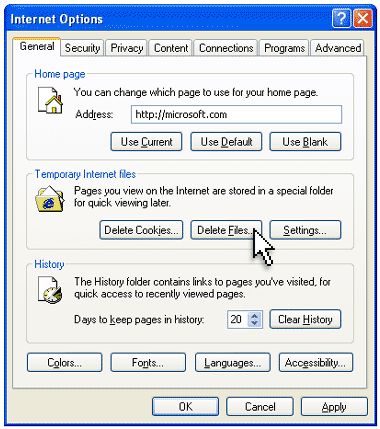
If you are using IE6, to clear the cache, on the menu bar, click TOOLS, an int the drop-down menu, select "Internet Options". The Internet Options box will open to the General tab (see screenshot)

In the section :Temporary Internet Files", click the DELETE FILES button.

FireFox

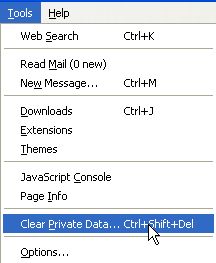
On the menu bar click TOOLS, then click on CLEAR PRIVATE DATA from the pull down menu, (see screenshot below):
FireFox: clear private data
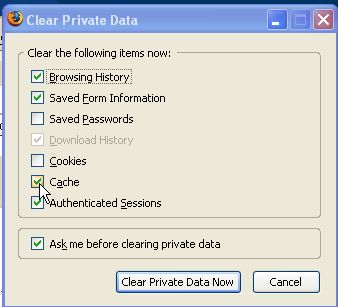
When you click that, a pop-up will appear. Tick "CACHE". You may also clear things like browsing history, etc, but it may mean that the convenience of being able to select a page already visited before from a list of choice as you begin to type in an URL in the address bar will no longer be present.
FireFox: clear cache

Books from Amazon

Blogging: Genius Strategies for Instant Web Content by Biz Stone, former Senior Specialist on the Google Blogger team

The Rational Guide to Google Blogger (Technical accuracy is assured by Biz Stone, Former Senior Specialist on the Google Blogger Team)

NEWER POST    OLDER POST
Continue reading →
Related Posts Plugin for WordPress, Blogger...